Let Parents Choose In Person, Video or Phone

You can let parents choose in person, video or phone when they book a conference. In SignUpSnap, set Meeting Type to Parent Chooses and check the options you can offer. Each family then picks the one that fits their week, and one conference can mix all three.
This post assumes your conference already has dates. If it doesn't, start with Set Up Parent-Teacher Conferences in 5 Minutes, then come back.
When Parent Chooses Fits
It fits a class where schedules don't match. A parent on a night shift may only be free for a call, a family across town may prefer video, and parents nearby can still come to your room. The other three Meeting Types give every family the same type.
Step 1: Let Parents Choose In Person, Video or Phone
Open Forms, select your conference, then select Edit.
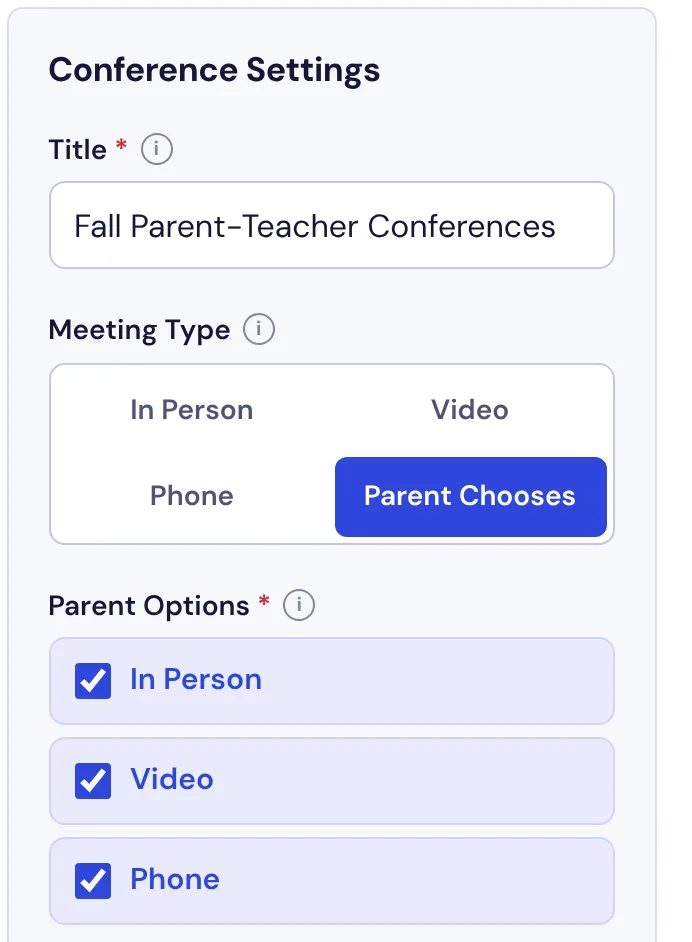
Under Conference Settings, find Meeting Type.
Select Parent Chooses.
Each family's pick is saved on that family's booking, so one conference can hold phone calls at 3:00 PM and a video call at 3:20 PM.
Step 2: Check Your Parent Options
Parent Options appears under Meeting Type with three checkboxes: In Person, Video and Phone. All three start checked. Families see only the ones you leave checked.
Uncheck a type you can't offer. If video isn't possible that week, uncheck Video. Keep at least two checked. With one left there is nothing to choose, and the editor shows "Pick at least two." until you check another.
Step 3: Fill In Video Provider and Location
The fields below follow the boxes you checked. A field for an unchecked type stays hidden and isn't saved.
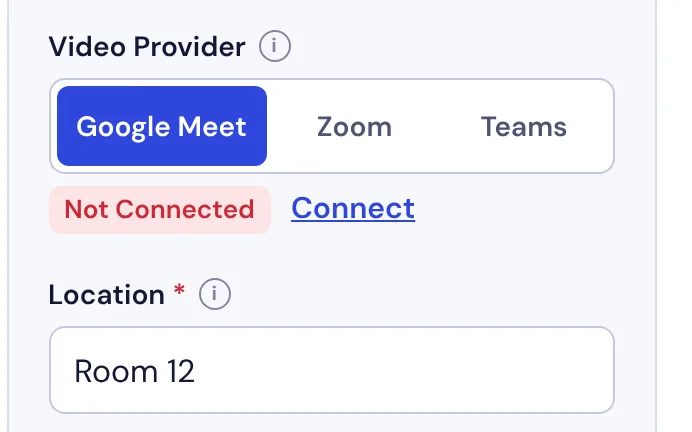
Video checked shows Video Provider. Pick Google Meet or Teams.
In Person checked shows Location. Type one, like "Room 12". You need it to publish.
Phone checked adds no field.
A red Not Connected badge under Video Provider means that service isn't linked to SignUpSnap yet. Select Connect to open Settings › Connections and link it. Publish stays blocked until the provider is connected.
SignUpSnap doesn't ask parents for a phone number. Tell families who calls whom, or ask them to add a number in Notes when they book.
Step 4: Check It With Preview What Parent Sees
Select Preview What Parent Sees at the top of the editor, beside Cancel.
Pick a day and a time, then select Next.
Check that Meeting Type lists only the options you checked.
Select Publish, or Save on a form that is already Active.
The preview books nothing and sends no email.
What Parents See
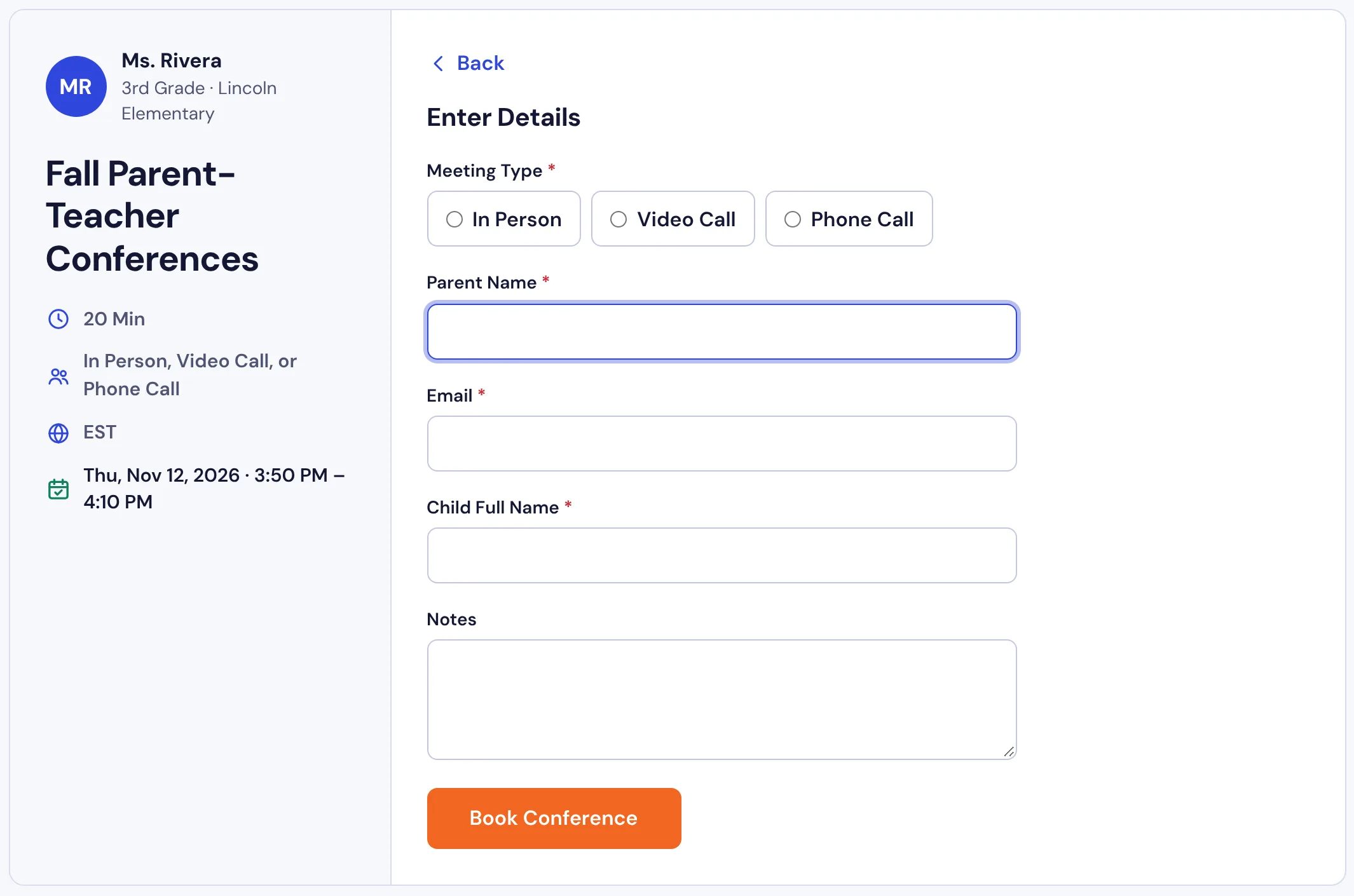
The panel beside the calendar lists the meeting as "In Person, Video Call, or Phone Call". A parent picks a day and a time, then selects Next. The Enter Details step opens with a required Meeting Type choice above the name and email fields. The buttons read In Person, Video Call and Phone Call, and the parent picks one before selecting Book Conference.
Families can change their pick on their own. The confirmation email has a View Booking button, and that page has Change Meeting Type. It lists only the types you offer and goes away once the meeting time starts. The family gets an Updated email, and the calendar event follows the change. To explain this to families, put the Help Center guide Pick a Meeting Type in a newsletter.
See Who Picked What
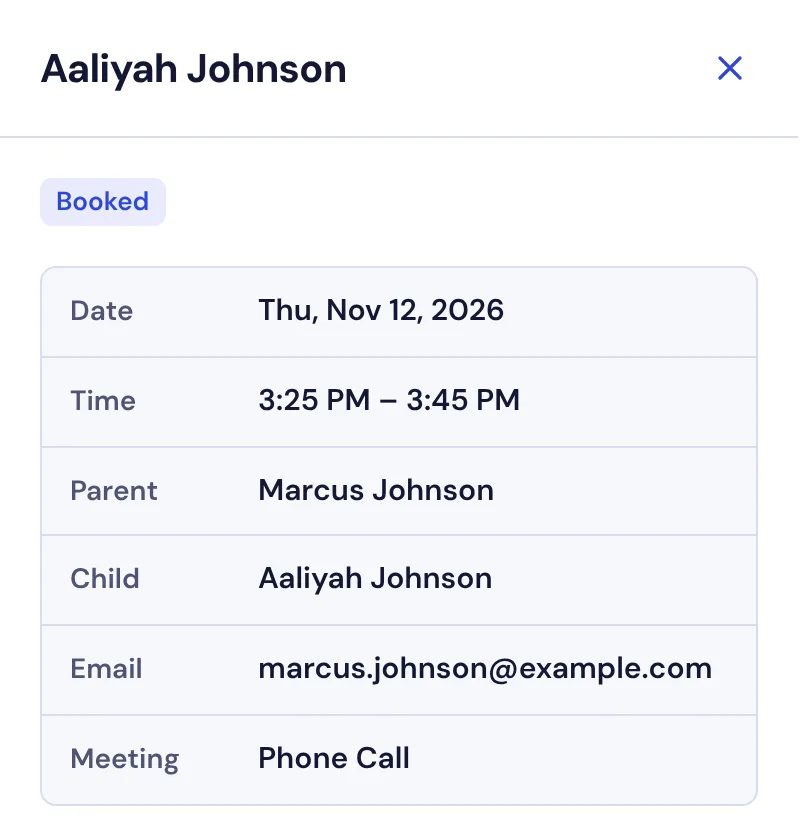
Open the conference from Forms and select a booked time. The drawer that opens has a Meeting row with that family's pick.
In person shows your location, like "Room 12".
Video shows the provider, like "Google Meet", with a Join Google Meet button for the call.
Phone shows "Phone Call".
Only video bookings get a meeting link. If one didn't come through, the drawer shows Meeting Link Missing with a Retry button.
Tip: Change Options With Care
You can edit Parent Options after families have booked. Unchecking a type that booked meetings use opens Change Parent Options?, which says how many meetings have a type you no longer offer. Keep Parent Options backs out. Change Parent Options unchecks it, and the change takes hold when you select Save. Those families keep the type they picked, so email them yourself, or leave that type checked until the conference is over.
For every meeting type, read Create a Parent-Teacher Conference in the Help Center. For the rest of what conferences can do, see the Parent-Teacher Conferences page.