Create a Sign Up Sheet: Video Walkthrough
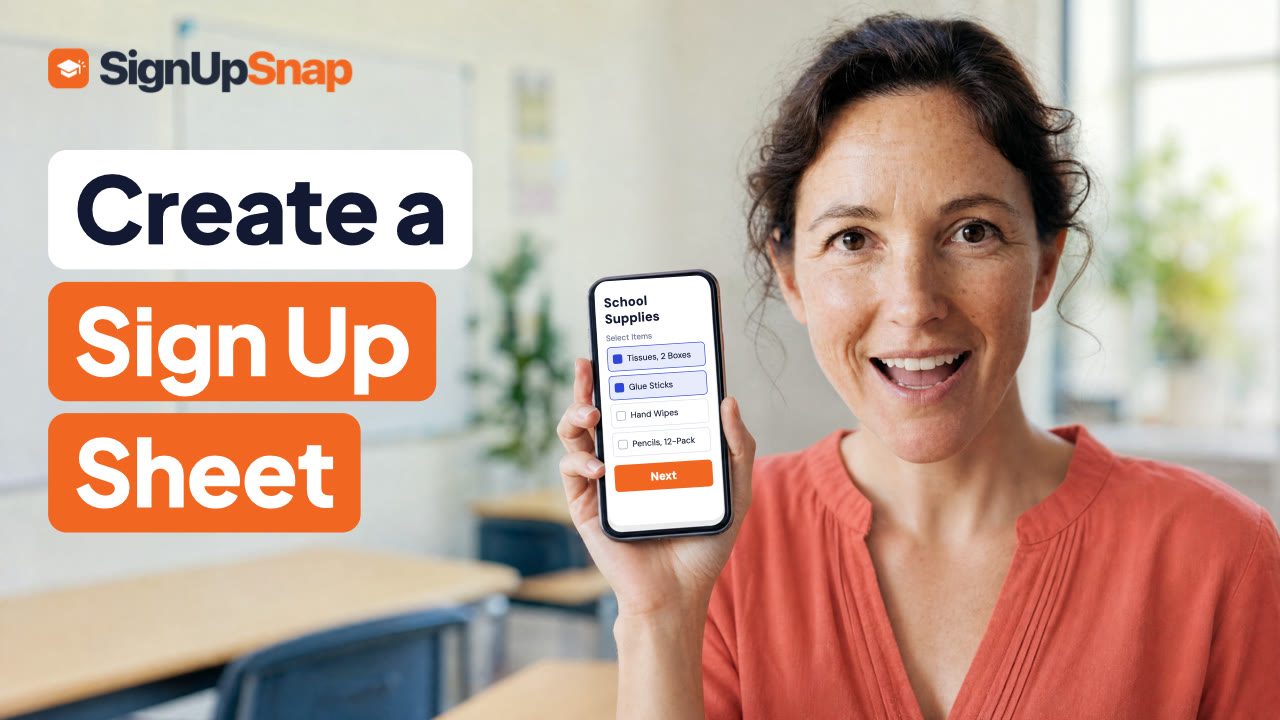
This short video shows how to create a sign up sheet in SignUpSnap. The example is a classroom supply sign up, where each family picks what to bring.
How to Create a Sign Up Sheet
Select New Form, then Sign Up.
Type a Title and pick the Date families bring things in. Location is optional.
Turn Item Times off for supplies. Leave it on for volunteer shifts and give each item a start time.
Type the first item and set Spots to how many families can take it. Select Add Item for each new one.
Under Other Families, pick Names Hidden to keep every sign up private, or Names Shown to list the families already signed up for each item.
Select Publish. Email the form to a class list from the Invite Lists card, or select Share to copy the link or get a QR code for a flyer.
What Parents See
Parents open the link on any phone, check what they'll bring, select Next and add their name. They don't need an account.
Track Who Signed Up
Open the form from Forms to see every response. The top shows how many spots are taken. Each sign up lists the item, the child, the parent and their email, and the Reminder column shows when each family's reminder email goes out.
Select Send Group Email to write to every family at once. Print and Export CSV are in the menu.
For a different date on each item, or items that stay open after they start, read Create a Sign Up Sheet in the Help Center. The video is also on the SignUpSnap YouTube channel.