Set Up Parent-Teacher Conferences in 5 Minutes

You can set up parent-teacher conferences in SignUpSnap in about five minutes. Pick your conference days and your hours. SignUpSnap cuts them into meeting times. Families book from one link, with no account and no app to download.
Have these ready before you start: the days your school set aside, the hours you can meet, and how long each conference should run. For help choosing a length, read How to Schedule Parent-Teacher Conferences Without the Email Chaos.
Step 1: Start a New Conference
Sign in, or create a free account.
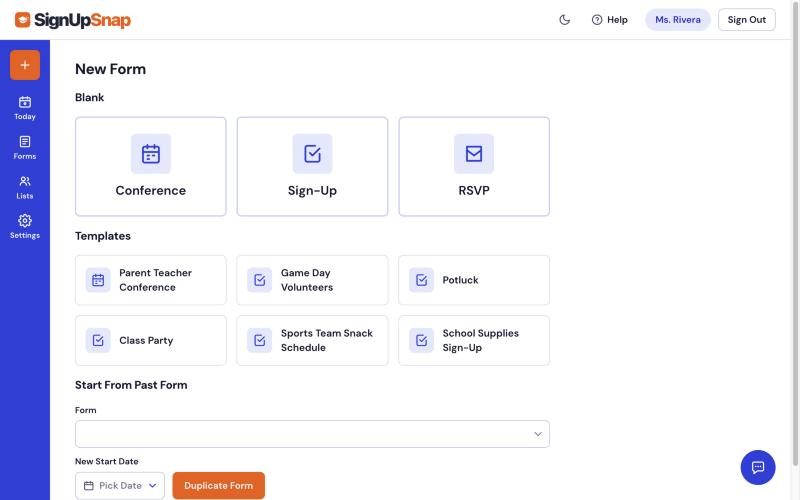
Select New Form in the left rail.
Select Conference.
The Parent Teacher Conference template under Templates is a faster start. It fills in 3:00 PM to 7:00 PM with 30-minute conferences. Change any of it in the next step.
Step 2: Add Your Conference Dates
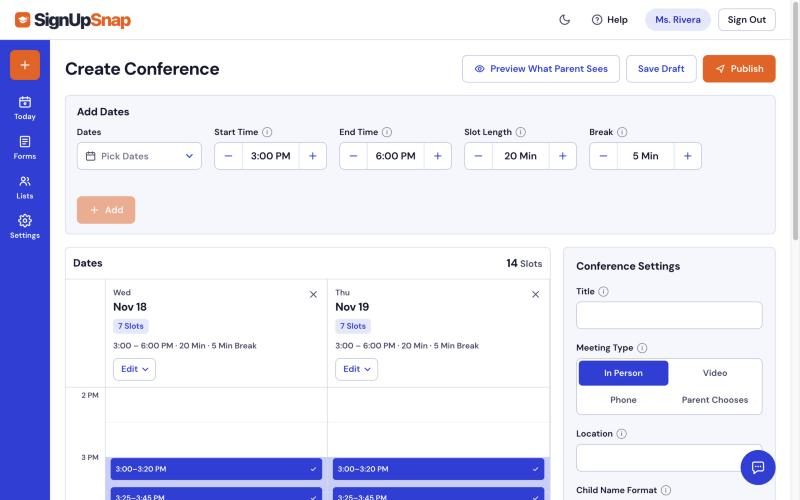
Under Add Dates, select Pick Dates.
Choose every conference day on the calendar. Select Done.
Set Start Time and End Time.
Set Slot Length. It runs from 10 to 120 minutes.
Set Break to leave minutes between families. Leave it at 0 for back-to-back times.
Select Add.
Your meeting times show up under Dates, one row per day. Add more days later the same way. Dates already added are grayed out.
Step 3: Change the Hours on One Day
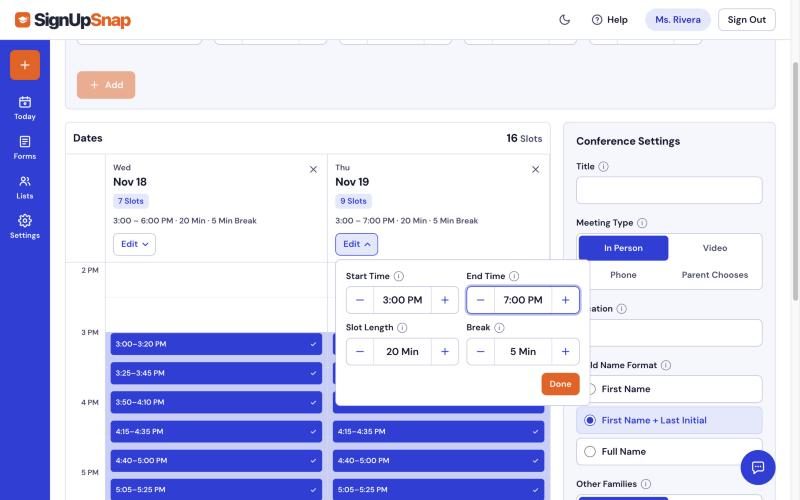
Some schools run a late night and a short day in the same conference week. Each date keeps its own hours.
Select Edit next to the date.
Change Start Time, End Time, Slot Length or Break.
Select Done.
Select a time on the grid to skip it, such as a dinner break. Families can't book a skipped time.
Step 4: Name It and Pick a Meeting Type
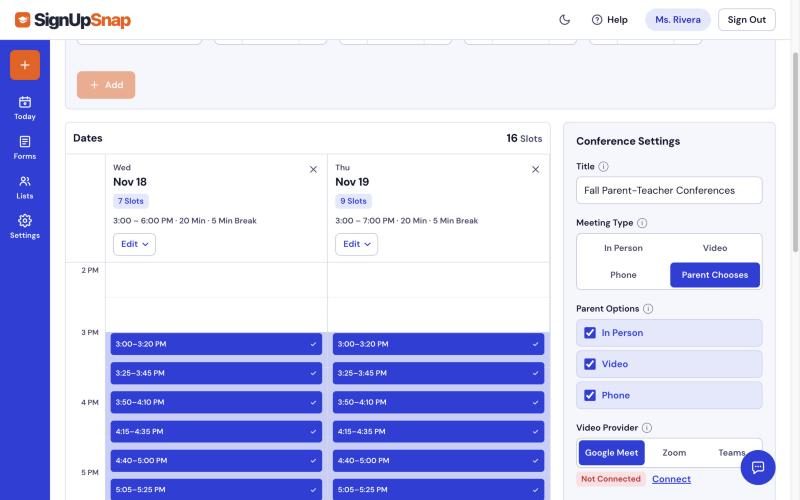
Under Conference Settings, type a Title. Families see it at the top of the booking page. Then choose a Meeting Type:
In Person: add a Location, like "Room 12".
Video: pick a Video Provider. Connect Google Meet or Microsoft Teams in Settings, under Connections, first.
Phone: you call the number the family gives.
Parent Chooses: families pick from the Parent Options you check. Check at least two.
Reminders are on from the start. Each family gets an email the day before their conference.
Step 5: See What Families See
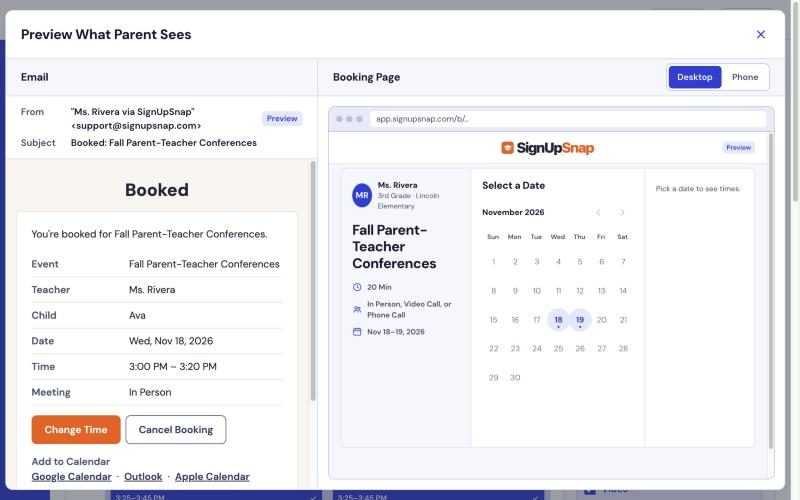
Select Preview What Parent Sees next to Publish. The booking page opens beside the confirmation email families will get. Switch between Desktop and Phone to see both sizes.
Try booking a time in the preview. Nothing is saved. No email goes out. Close the preview to fix anything that looks off.
Step 6: Publish and Share the Link
Select Publish.
In the Share window, select Copy Link on the Link tab.
Paste the link into a class newsletter, an email or a class app.
The conference is now Active. Bookings show up on the form page as families pick times.
The QR Code tab has Download QR Code. Put the code on a flyer or a slide for back-to-school night. Parents scan it with a phone camera.
Using Lists? The Share window doesn't open after Publish. Select Share on the form page instead.
Want to wait? Select Save Draft instead of Publish. Nobody can book a draft.
What Families Get
A parent opens the link, picks an open time and types their name, email and child's name. A booked time disappears for everyone else. Two families can't land on 3:15.
The confirmation email lists the date, time and meeting details. It has Change Time and Cancel Booking buttons, plus Add to Calendar links for Google Calendar, Outlook and Apple Calendar. Families can move their own time until the conference starts.
Open Today on conference day. Meetings Today lists every family in order, with links to each booking.
Tip: Reuse It Next Term
Spring conferences don't need a fresh setup. Select New Form, then Start From Past Form. Pick this conference and set a New Start Date. Your times, meeting type and settings carry over to the new dates.
Read Create a Parent-Teacher Conference in the Help Center for more on each field. See everything conferences can do on the Parent-Teacher Conferences page.